
Website speed matters. A slow site can hurt traffic, sales, and user trust.
According to the Semrush report, if your website’s engagement rate is 70%, the bounce rate is 30%. However, if the bounce rate exceeds 60%, it indicates you need to review features that may be harming the user experience, such as your page’s loading speed.
Improving your website speed doesn’t require complex development work, but it does require knowing where to focus and what to fix first.
This guide will show you how to optimize your website speed with easy, actionable steps. First, let’s understand why speed matters before diving into practical fixes.
Why Website Speed Matters
Fast websites do better. Period.
- Higher search rankings
- Better user experience
- More conversions
According to Portent, a site that loads in 1 second has a higher conversion rate than a site that takes 10 seconds to load.
Faster websites directly correlate with higher conversion rates and revenue.
Page speed is also a ranking factor used by Google. That means faster websites appear higher in search results. It’s not just about technical performance. It’s about visibility and growth.
Fast sites also build trust. Waiting for a page to load today is unacceptable, and no one wants to wait. Users expect snappy, responsive experiences. If you’re slow, they’ll bounce.
How To Optimize Website Speed
Before applying any optimizations, it’s important to measure your current performance. Here are a few strategies you can implement to improve your site speed.
Run a Speed Test First
Before fixing anything, know what you’re dealing with.
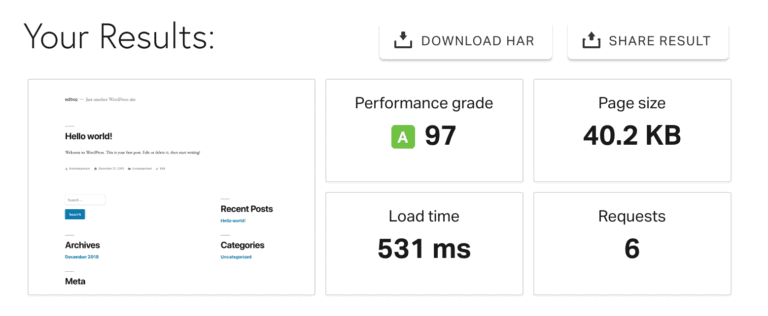
Use tools like:
These tools display your current load time and provide specific recommendations.
Look at:
- Largest Contentful Paint (LCP)
- Cumulative Layout Shift (CLS)
- First Contentful Paint (FCP)
- Time to Interactive (TTI)
- Performance grade
- Total load time
Note: Google has replaced First Input Delay (FID) with Interaction to Next Paint (INP) as part of Core Web Vitals. You should monitor INP alongside LCP and CLS.
These metrics reveal where the bottlenecks are. Use these reports to build a roadmap. Always test multiple pages, including your homepage, product pages, and blog.
Compress Your Images
Images consume a significant amount of space. That slows things down.
Use tools like:
Convert images to next-gen formats like WebP. These are lighter and faster.
Pro tip: Keep hero images under 500 KB. Thumbnails? Under 100 KB.
Also, avoid using large images scaled down with CSS. Instead, resize them before uploading.
For WordPress users, consider plugins like ShortPixel or Imagify.
Use responsive image tags like <img srcset> to serve different image sizes depending on screen resolution. This saves bandwidth and speeds up mobile loading times.
Images are often the heaviest assets on any website, especially for e-commerce brands where product visuals drive conversions.
Many websites speed up image delivery by using a Content Delivery Network (CDN), which serves assets from servers closest to the user. This reduces latency, improves mobile responsiveness, and makes sure images load quickly, no matter where someone is.
This approach helps reduce latency, improve mobile responsiveness, and keep users engaged rather than waiting for images to load.
Defer Offscreen Images
Not all images are visible immediately, especially on long pages.
Loading them too early wastes bandwidth and slows the page.
Instead, defer offscreen images until they’re actually visible in the user’s viewport.
Here’s how:
- Use loading=”lazy” on <img> tags (modern browsers support this)
- For background images, try JavaScript libraries like lazysizes
- Avoid lazy-loading images above the fold — they should load immediately
This tiny tweak can drastically reduce page size and improve initial load times, especially for image-heavy pages like blogs or product galleries.
Pro tip: Lazy loading also helps save mobile data for your users.
Limit the Use of Web Animations
Animations are widely used in modern web design, but they must be implemented carefully to avoid performance issues.
Why?
Animations look great when done right. But they can slow down your site.
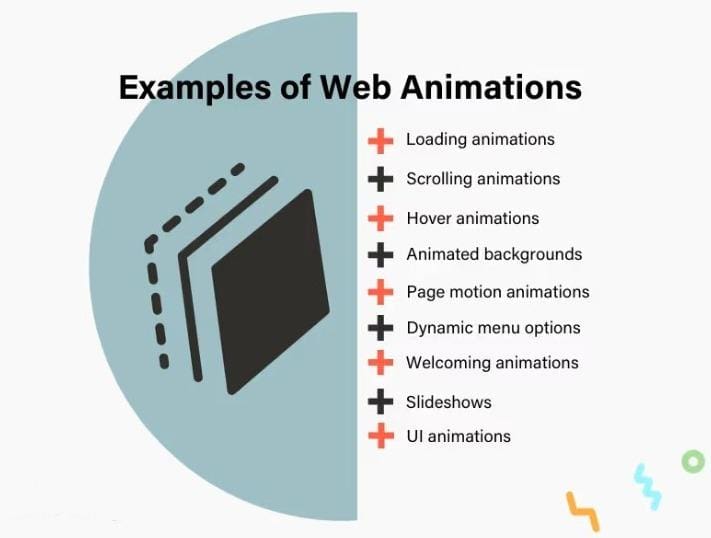
Too many transitions, parallax effects, or JS-based animations can cause:
- Increased CPU usage
- Higher paint time
- Layout shifts (bad for Core Web Vitals)
To keep things smooth:
- Use CSS animations instead of JavaScript where possible
- Keep animations minimal and purposeful
- Avoid animating large elements or entire sections
- Use the will-change property wisely to hint at performance
Overdone animations = slow, janky experience. Keep them light and intentional.
If in doubt, test your site using Chrome DevTools Performance tab to see what’s dragging it down.
Implement Critical CSS
Not all CSS needs to load at once. By isolating the styles needed for the above-the-fold content, you can significantly reduce the time it takes for users to see something useful.
This technique is called Critical CSS.
What it does:
- Loads only essential styles for the visible part of the page
- Defers the rest of the styles to load after the initial render
- Improves First Contentful Paint (FCP) and Largest Contentful Paint (LCP)
If you’re a WordPress user, you can use WP Rocket or FlyingPress (Critical CSS is auto-generated)
It requires some setup, but the payoff in perceived speed is huge.
Pro tip: Test your homepage and most-visited pages individually. Each may need slightly different critical CSS rules.
Reduce JavaScript Execution Time
Heavy or poorly optimized JavaScript is one of the top culprits of long load and interaction delays.
Modern websites often load libraries, such as jQuery, animation scripts, and sliders — even when they’re not needed.
Tips to improve:
- Remove unused JavaScript with PurgeCSS
- Defer non-critical scripts using the defer or async attributes
- Minimize third-party embeds (chatbots, forms, ads)
- Use lightweight libraries like Alpine.js instead of jQuery when possible
Check the “Main Thread Work” section in your PageSpeed Insights report — long JavaScript execution here is a red flag.
Reducing JavaScript isn’t just about speed — it also improves Time to Interactive (TTI) and keeps your users happy on slower devices.
Optimize Fonts for Performance
According to the SEOpowerplays newsletter, web fonts are often overlooked, but they can seriously slow down your page if not optimized.
Here’s how to make them fast:
- Use modern formats: WOFF2 is up to 30% smaller than WOFF or TTF.
- Limit font weights & styles: Stick to 1–2 weights (e.g., regular & bold).
- Host fonts locally: Avoid Google Fonts API calls by downloading and self-hosting.
- Swap or fallback fast: Use font-display: swap to avoid invisible text on load.
Pro tip: Google Fonts Helper can help you self-host and preload fonts easily.
Optimizing fonts improves both visual consistency and overall page performance.
Use Lazy Loading
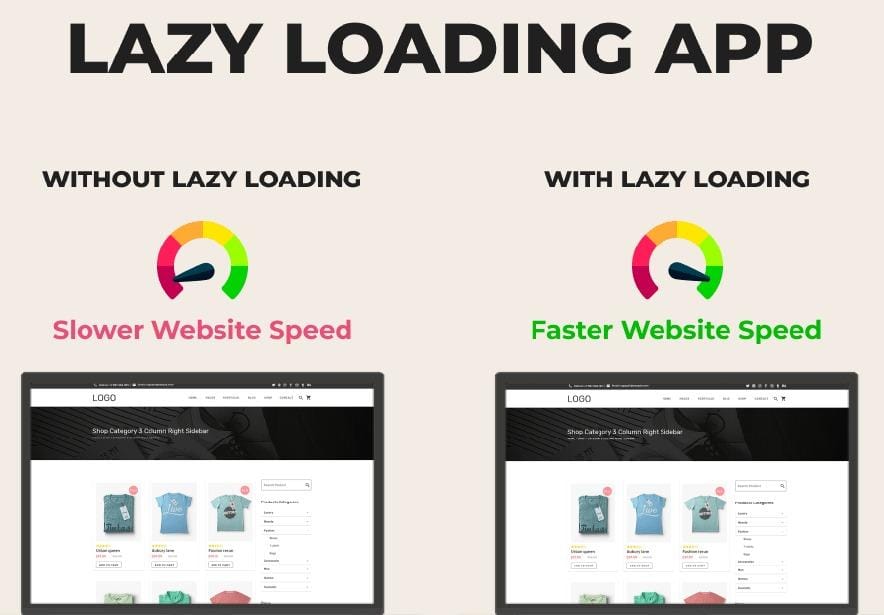
Screenshot provided by the author
Don’t load everything at once.
Lazy loading defers images and videos until users scroll down. That means faster first impressions.
Use loading=”lazy” in your HTML. Alternatively, you can install a plugin if you use WordPress.
This approach is simple to implement and delivers immediate performance improvements.
Lazy loading reduces initial page weight, which can dramatically reduce load time on image-heavy pages like galleries or product listings.
Modern browsers now support native lazy loading, making it even easier to implement.
Choose a Fast Hosting Provider
Your host is your foundation.
Shared hosting is affordable, but it often leads to slower performance.
Look for hosts that offer:
- SSD storage
- HTTP/2 or HTTP/3 support
- LiteSpeed servers
- Dedicated or VPS options
- Built-in caching
Top picks:
Choosing a high-performance hosting provider directly impacts your site’s speed and reliability.
Also, consider location. Some hosts allow you to select a data center closest to your primary audience during setup.
Investing in quality hosting means fewer timeouts, better uptime, and more scalability.
Minify CSS, JS, and HTML
Code can be messy. Extra spaces, line breaks, and comments slow things down.
Minification removes all the fluff.
Use tools like:
Clean, minified code helps pages load faster and removes anything that slows down rendering.
Combine multiple CSS and JS files where possible. Fewer requests mean faster performance.
Be cautious with JavaScript-heavy sites. Sync and defer attributes can help load scripts without blocking rendering.
Enable Gzip or Brotli Compression
Compression makes your files smaller.
That means faster delivery to browsers.
Most web servers support Gzip or Brotli.
You can enable it via:
- Your .htaccess file (Apache)
- Server settings (NGINX)
- Hosting control panel
Use Check Gzip to test it.
Brotli often compresses more efficiently than Gzip. If available, use Brotli.
Compression can reduce page size by 60–90%. That’s huge.
Use a Content Delivery Network (CDN)
CDNs store your content on servers worldwide.
They deliver from the nearest location to the user. That cuts down latency.
Top CDN providers:
CDNs are especially effective for websites with a global audience
CDNs also protect against traffic spikes and DDoS attacks. Some offer built-in caching and image optimization.
Even better, many CDNs offer a free tier that’s sufficient for small sites.
Reduce HTTP Requests
Each element on your page (CSS, images, fonts) = one request.
Excessive requests increase load time and reduce performance.
How to reduce them:
- Combine CSS/JS files
- Use SVG icons instead of PNGs
- Limit fonts and embeds
- Use inline small CSS for above-the-fold content
Use the browser’s developer tools to count requests. Aim to keep them under 100 per page.
The fewer calls your page makes, the faster it loads.
Avoid Heavy Themes and Plugins
Pretty themes can be heavy.
Same with too many plugins.
Choose:
- Lightweight themes (Astra, GeneratePress)
- Only essential plugins
Audit your site regularly. Delete what you don’t need.
Avoid visual page builders if you don’t need them. They add bloat. Use clean HTML and CSS where possible.
Use the Query Monitor plugin (for WordPress) to detect performance issues in plugins.
Use Browser Caching
Browser caching stores static files on a visitor’s device.
When they return, your site loads much faster.
Set cache-control headers in your server. Or use a caching plugin like:
- WP Rocket
- W3 Total Cache
- LiteSpeed Cache
Repeat visitors will thank you.
Set expiration headers for images, CSS, and JS files so that browsers know when to reuse local versions.
Browser caching is especially important for mobile users with slower connections.
Optimize Your Database
Over time, databases get bloated.
This slows down queries and page loads.
If you use WordPress, clean up:
- Post revisions
- Spam comments
- Transients
- Auto-drafts
Tools:
- WP-Optimize
- Advanced Database Cleaner
A well-maintained database improves query speed and overall site performance.
Also, optimize database tables regularly using phpMyAdmin or via plugins. This helps reduce overhead.
Schedule cleanups weekly or monthly.
Limit External Scripts
Third-party scripts = more load time.
Common culprits:
- Chat widgets
- Ad networks
- Social media embeds
- Analytics tools
Only use what’s essential.
Load scripts asynchronously if possible.
Use Google Tag Manager to manage and delay non-critical scripts.
The fewer external scripts you rely on, the better your control over speed.
Preload Important Assets
Tell browsers what’s essential.
Preloading fonts and key images helps speed up paint time.
Use:
<link rel=”preload” href=”/fonts/my-font.woff2″ as=”font” type=”font/woff2″ crossorigin>
Browsers load what matters first.
Preloading is especially helpful for custom fonts, which can otherwise delay text rendering.
Also consider preconnect and dns-prefetch to prepare browser connections in advance.
Keep Redirects to a Minimum
Redirects add wait time, so use as few as possible.
Avoid redirect chains (A → B → C) and always go direct (A → C).
Audit redirects using tools like Screaming Frog. Fix or remove outdated ones.
If you must use redirects, make sure they’re permanent (301) and quick.
Monitor Site Speed Regularly
Optimization is never done.
Track performance with tools like:
- Google Analytics Site Speed
- Lighthouse
- WebPageTest
Make it a habit.
Set reminders to test monthly. Monitor metrics after each site change or plugin update.
Trends in speed over time reveal deeper issues.
Optimize Your Website For Mobile Users
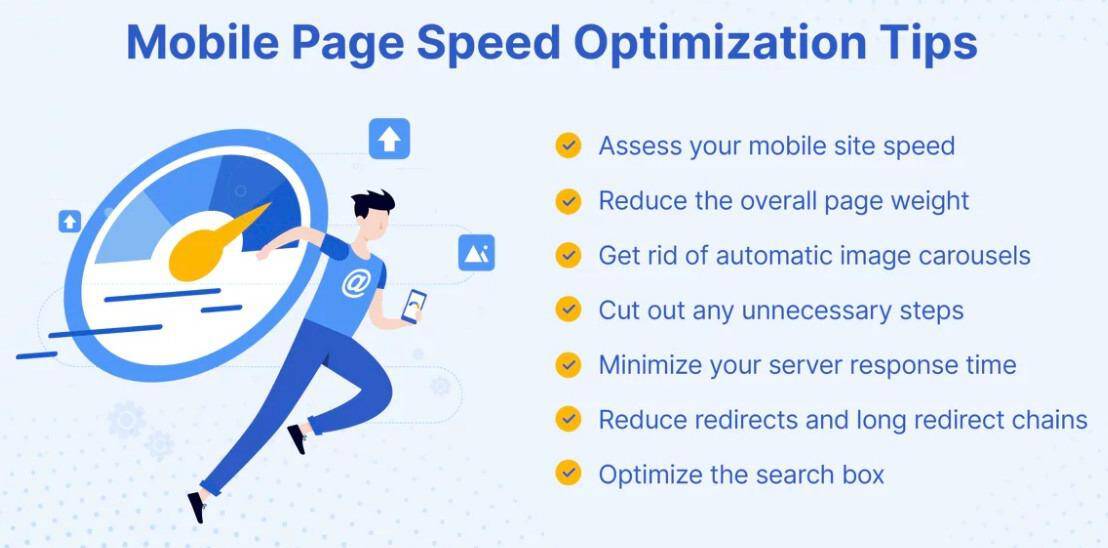
Mobile-first is real.
Google uses mobile speed for ranking.
Tips:
- Use responsive images
- Minimize popups
- Use legible fonts
- Avoid large file downloads
- Optimize tap targets for thumbs
Test with Google Mobile Test.
Faster mobile performance contributes directly to improved SEO rankings, something an enterprise SEO company can help with.
Most users now browse from phones. Prioritize that experience. At the same time, performance improvements should not compromise your website’s security.
Implement Security Measures
While optimizing your website speed and reducing loading times is essential for user experience and SEO, it’s equally important to maintain strong security measures throughout the process.
Implementing continuous security validation ensures that you’re not inadvertently introducing vulnerabilities or security gaps even when making performance improvements, such as:
- Adding caching
- Compressing files
- Integrating third-party tools
By regularly testing and validating your website’s security posture alongside speed optimizations, you can deliver a fast, seamless user experience without compromising on protection against cyber threats.
A simple optimization workflow:
- Run a speed test
- Optimize images
- Enable caching and compression
- Reduce JavaScript and HTTP requests
- Monitor performance regularly
Final Thoughts
Now you know how to optimize your website speed.
It’s not about doing everything at once. It’s about making small changes that stack up.
Start with image compression, then move on to caching, scripts, and CDNs.
Keep your site lean. Keep it fast.
Your users (and Google) will love you for it.
Remember: test often, iterate constantly, and never ignore speed.
If you want to take your optimization further, check out more advanced SEO and performance guides on Nikolaroza, where you’ll learn how to improve Core Web Vitals, fix technical SEO issues, and scale your site’s performance sustainably.
Author bio:

Nikola Pantic is a Partnerships Manager at uSERP, connecting with partners and nurturing those partnerships through mutual collaboration, and is a seasonal writer who helps shape various industries through the written word.
Disclosure: Some of the links you’ll encounter are unique links. Click and buy something and I’ll earn some money, at zero expense to you. Thank you!

Nikola Roza
Nikola Roza is the owner of Nikola Roza- Everything You Can Learn About Precious Metals. He writes for people who love precious metals and jewelry and who're interested in adding gold, silver platinum and palladium to their Gold IRAs and retirement portfolios.